In short
- Open ‘Manage competitions’ and choose ‘Manage’ for your competition.
- Set a competition code and share the invitation link; it works once the rules are published and the status is ‘Open for teams’.
- Track payments, split the prize money and create subgroups; do not choose ‘Lock’ just to stop new sign-ups.
The screenshots show a fictional cycling competition with invented participants, an invented code and a fictional bank link. The sections are the same for every sport. If you do not see something, you may not manage that competition, or it may belong to an organization.
Open competition management
Choose ‘Manage competitions’ at the top. You see every competition you manage, with its status and rules version. Choose ‘Manage’ on the competition you want to invite people to. On the ‘Setup’ tab you find the Competition code, Entry fee, Prize money and Subgroups sections below the rules.
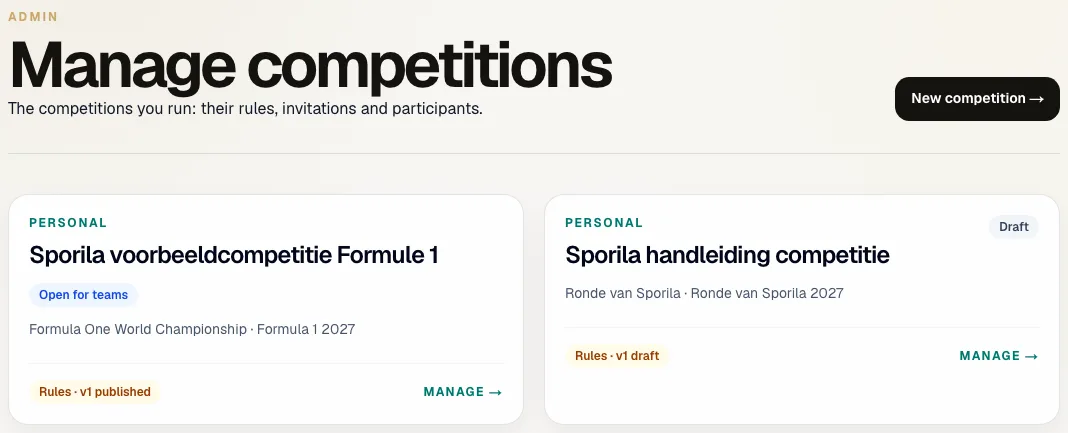
Or use the ‘Invite’ line
If you play yourself, cycling, Formula One and football competitions show a slim ‘Invite’ line below the tabs, with the invitation link and a ‘Manage’ link. Only administrators see it; your participants do not.

Set a code and share the invitation link
Under ‘Competition code’ you set one code for everyone you invite. Sporila turns it into an invitation link. Share the link, or the code for people who prefer typing it; capitals do not matter. An invitee opens the link, signs in or creates an account and confirms. ‘Replace code’ makes the old code stop working. ‘Deactivate’ stops new sign-ups; everyone who already joined keeps access.
What joining looks like for your participants
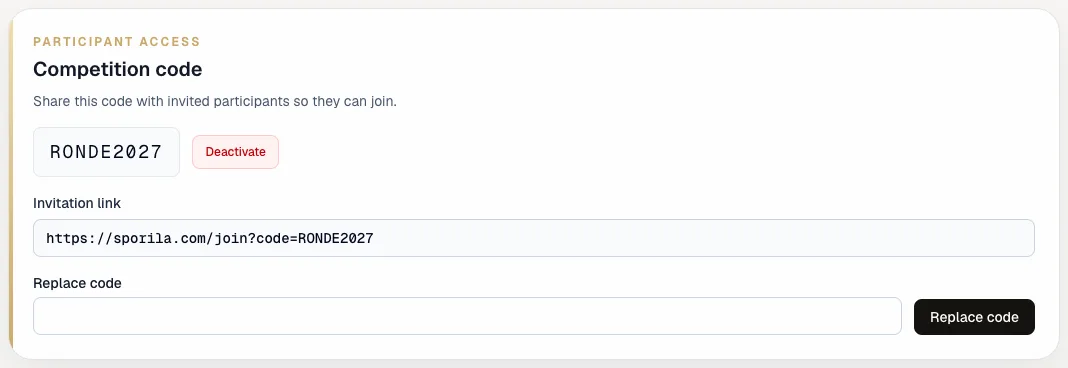
When the code works
Joining with the code only works once the rules are published and the competition is ‘Open for teams’. If the competition belongs to an organization, invitees must also be members of that organization. Check this before you share the link, so nobody gets an error.
Choose free or paid and track payments
Under ‘Entry fee’ choose ‘For fun — no entry fee’ or ‘Entry fee required’. For a paid competition enter the amount and a secure (https) bank link, such as a payment request. Sporila does not process payments itself: participants open the bank link and you confirm receipt with ‘Mark paid’. Until then they show ‘Payment pending’ and cannot submit a team. Fix a mistake with ‘Reset to pending’.
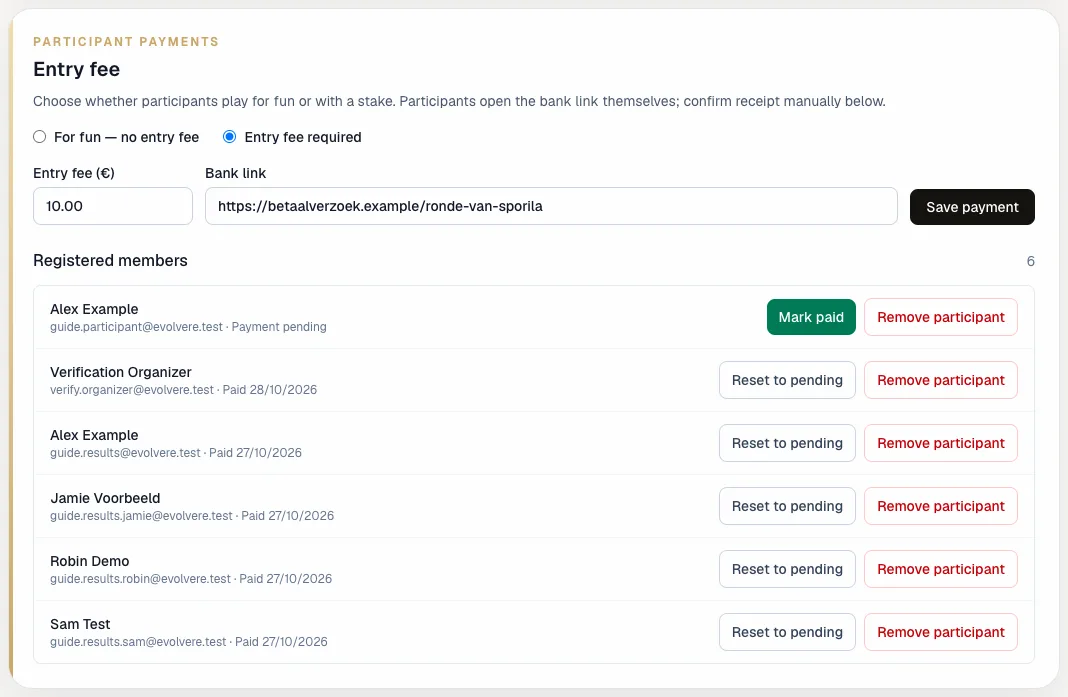
Remove a participant
The same list has ‘Remove participant’ next to everyone. You confirm it first. If that participant already submitted a team and scored points, an extra warning follows: removing them permanently deletes the team and score history.
See who still needs to act
The ‘Participation’ tab in competition management shows in one view how many participants there are, how many have paid and how many have submitted for the next deadline. Under ‘Action needed’ you find the names of everyone who has not paid or not submitted yet, so you remind exactly the right people. You still mark payments on ‘Setup’; the tab only shows.
Split the prize money
A paid competition shows ‘Prize money’. Enter an amount for each place, such as 25 or 12.50; every place has its own field. ‘Add a place’ adds one and × removes one. An empty field means no prize for that place. Optionally add a last place prize. Tied participants split the combined amounts of the positions they share. Participants see their amount next to their points in the standings.
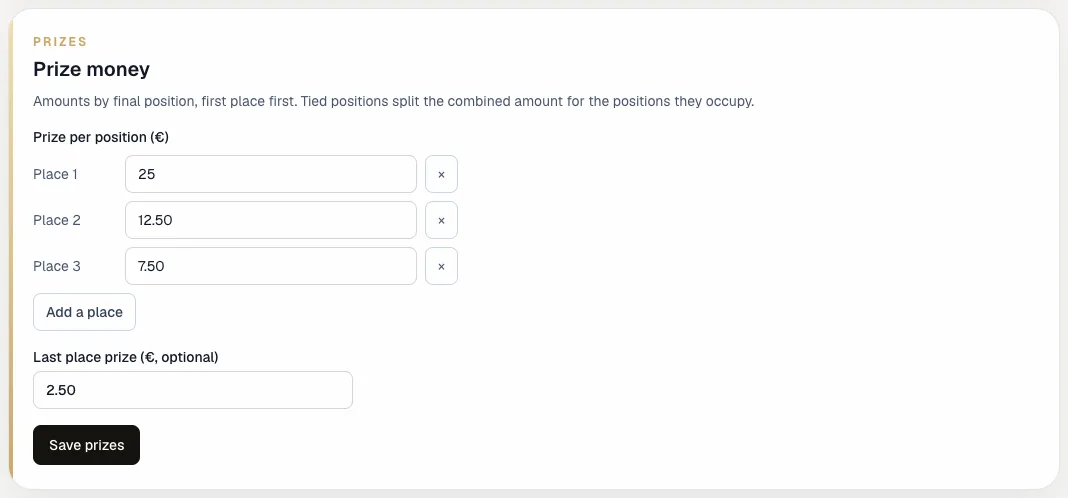
Put participants into subgroups
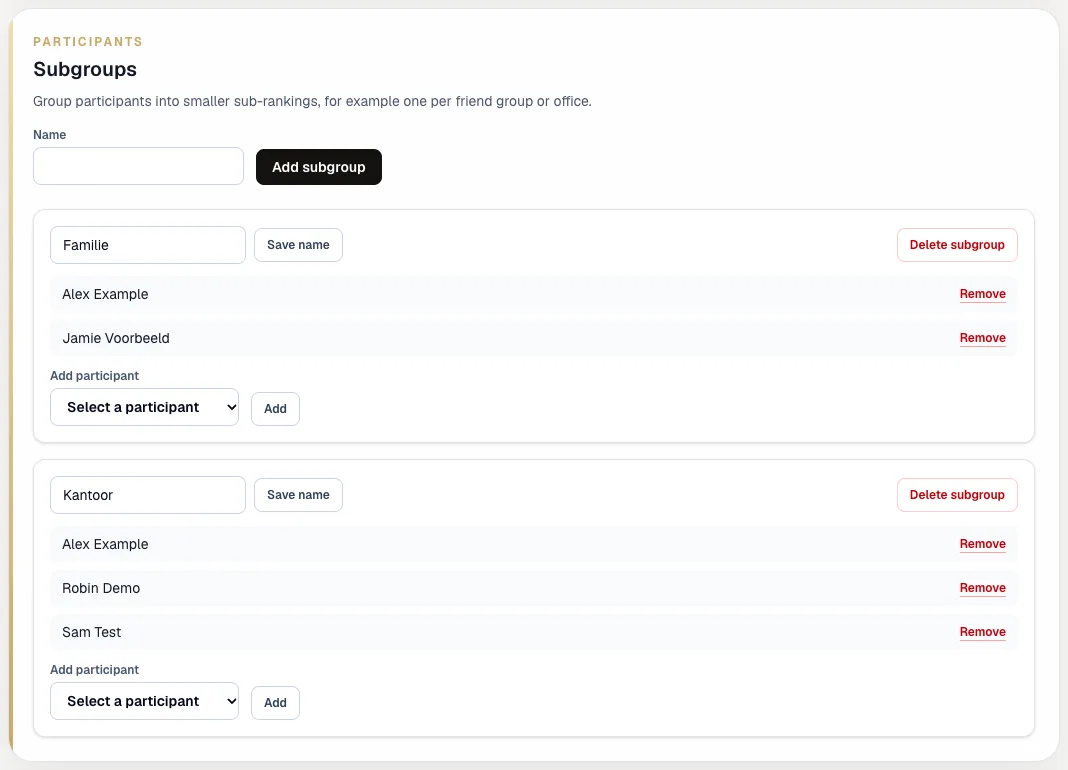
‘Subgroups’ give part of your participants their own ranking, for example one per family, friend group or office. Enter a name and choose ‘Add subgroup’. Then add participants to each subgroup from the list. Someone can be in several subgroups. You can rename or delete a subgroup; participants’ points do not change. The list shows each participant’s e-mail address after their name, so two participants with the same name stay apart.
What participants see of subgroups
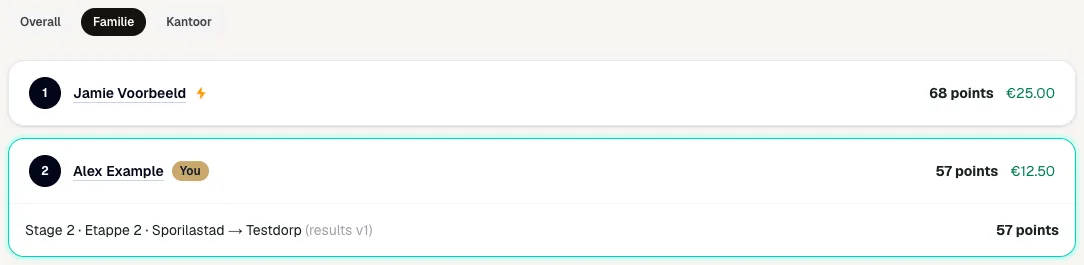
In the standings, participants get tabs above the ranking: ‘Overall’ for everyone and one tab for each subgroup they are in. They do not see subgroups they are not in. A subgroup shows the same score as the overall standings, ranked within that group. Prize money belongs to the overall standings. If you play yourself and want to follow a subgroup, add yourself to it.
Be careful with ‘Lock’
Next to your competition’s status is the ‘Lock’ button. It cannot be undone, and it does more than stop new sign-ups: nobody can save or change their team afterwards, not even for a next race weekend or Phase. If you only want to stop new participants, deactivate the competition code instead.

Ready to invite?
Check that the rules are published and the competition is open, set your code and share the invitation link. Then track payments and create subgroups if your group enjoys them.
Go to competition managementHaving trouble?
An invitee gets an error with the code
Check that the rules are published, the competition is open and the code has not been deactivated or replaced. If the competition belongs to an organization, the invitee must join that organization first.
I do not see the Prize money section
Prize money only appears for a competition with an entry fee. Choose ‘Entry fee required’ first and save the payment.
A participant paid but cannot play
Mark them paid under Entry fee. Sporila cannot see your bank account; without your confirmation the payment stays pending.
How do I enter cents in the prize money?
Type the amount the way you are used to, with a point or a comma: 12.50 and 12,50 both become 12 euros and 50 cents. Every place has its own field.
A participant does not see the subgroup
Participants only see subgroups they are in. Add them to the subgroup and ask them to reopen the standings.
I chose ‘Lock’ by mistake
You cannot undo that yourself. If you manage an organization, open a ticket through ‘Support’; otherwise e-mail support@sporila.com, with your competition’s name.
Next guide: Correct the rules before the start